Start a session and choose the settings
Press "Go live", choose how students move through the questions, when they see answers, timers and other options.
For teachers
- 1
Press "Go live"
On a dashboard card, or "Go live →" in the editor.
- 2
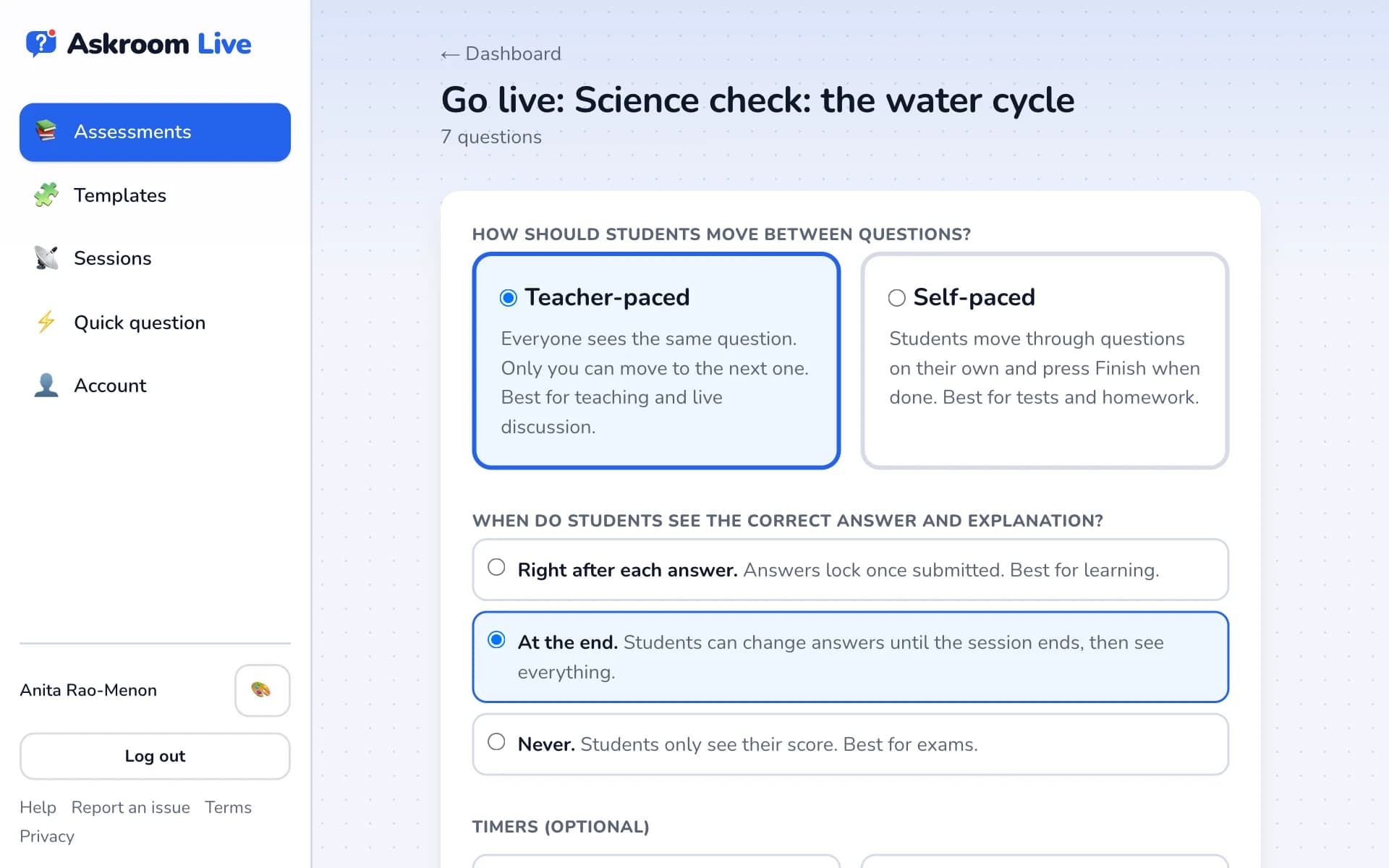
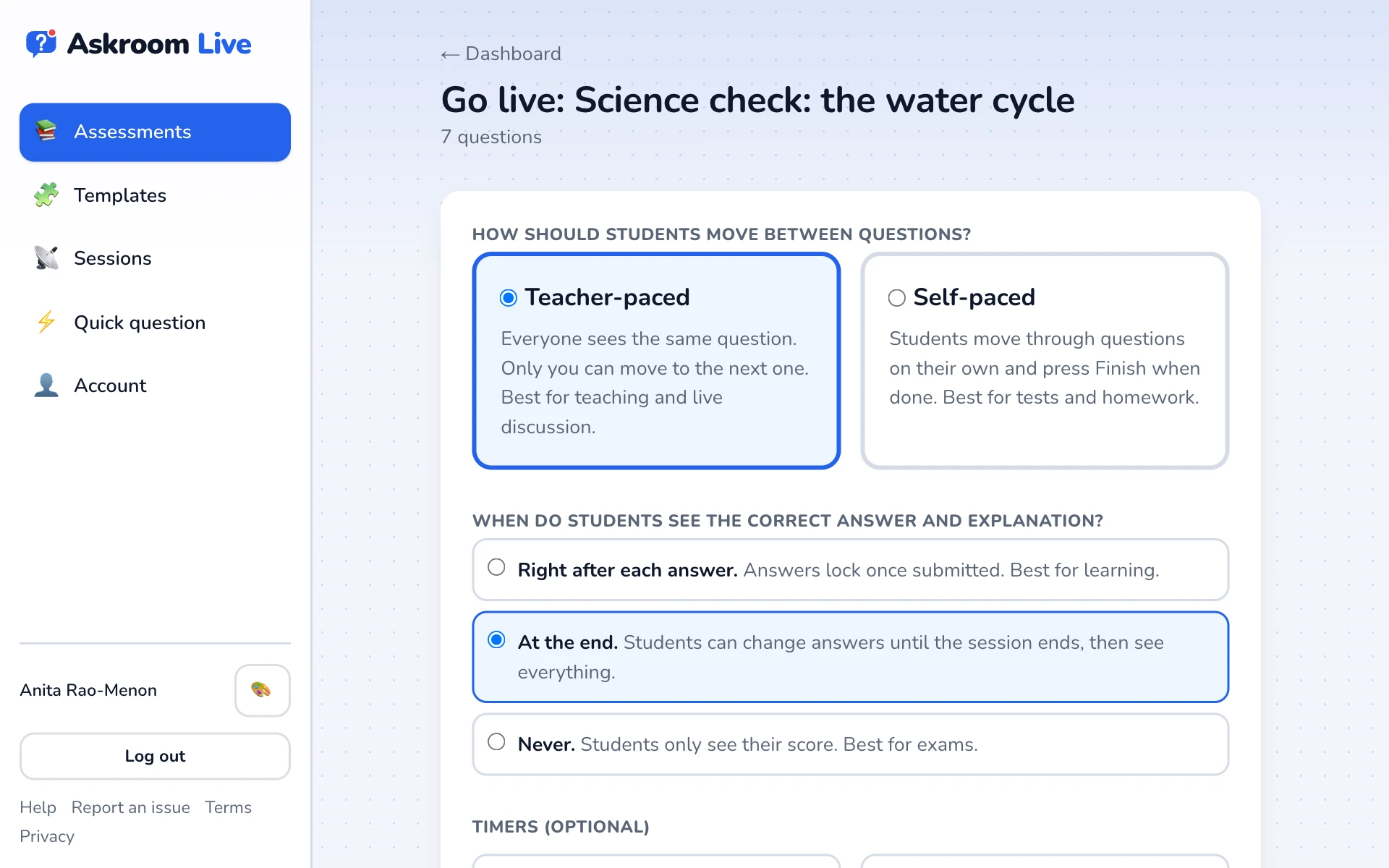
Choose the pace
- "Teacher-paced": everyone sees the same question and you move them on. Best for teaching and discussion.
- "Self-paced": students move on their own and submit when done. Best for tests and homework.
- 3
Choose when students see answers
- "Right after each answer." Answers lock once submitted. Best for learning.
- "At the end." Students can change answers until the end, then see everything.
- "Never." Students only see their score. Best for exams.
- 4
Timers (optional)
- "Whole-test time limit (self-paced)": answers submit automatically at zero.
- "Per-question countdown (teacher-paced)": answering closes when it ends; you still choose when to move on.
- 5
Other options
- "One name per session": a second student with the same name is asked to add an initial.
- "Let students look back at earlier questions and change those answers".
- "Send my notes and ink to students straight away": untick to hold your comments until the end.
- "Shuffle answer options" and "Shuffle question order" for each student.
- "Run this as an exam": see the exam mode article.
- 6
Choose how long the code works
Under "Join code valid for", choose from 30 minutes to 30 days, then press "Create session and get join code".
Related
Was this page helpful?