Preview, print and copy
Try an assessment as a student before class, and print it or copy it into Word or Docs.
For teachers
- 1
Preview as a student
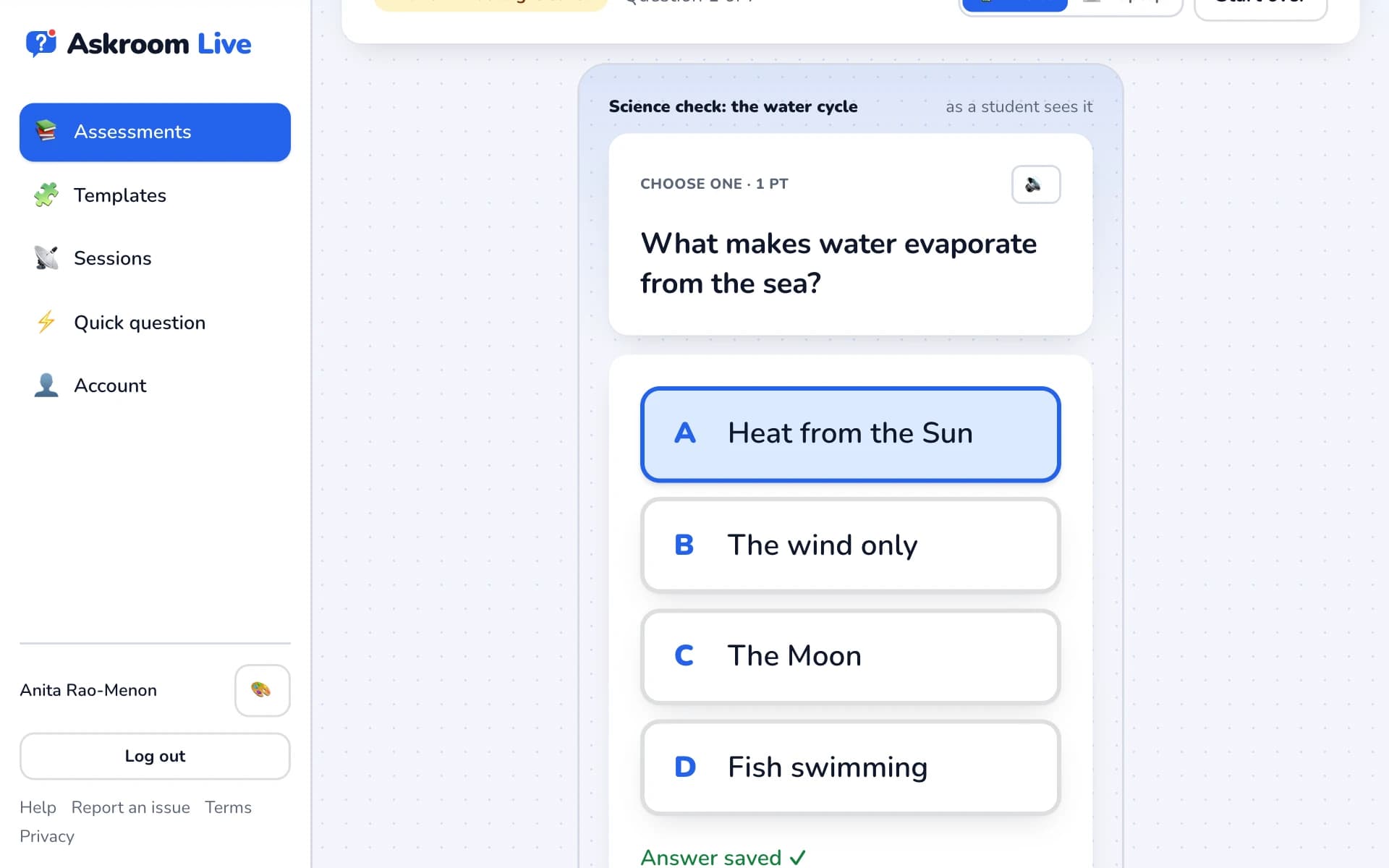
Press "👁 Preview" in the editor (or the 👁 on a dashboard card). Switch between "📱 Phone" and "💻 Laptop", answer questions and press "Check this answer". Nothing is saved.
- 2
Print or save as PDF
Press "📄 Print / copy" → "🖨 Open printable page ↗", choose "Show answer key" or "Hide answer key", then "Print / Save as PDF".
- 3
Copy into Word or Google Docs
Press "📄 Print / copy" → "📋 Copy for Word or Docs" and paste. Pictures are not copied; use the printable page for those.
Related
Was this page helpful?