Mark answers and give feedback
Open any answer, mark it with one tap or a rubric, write a note or draw on it, and ask for an improved version.
For teachers
- 1
Open an answer
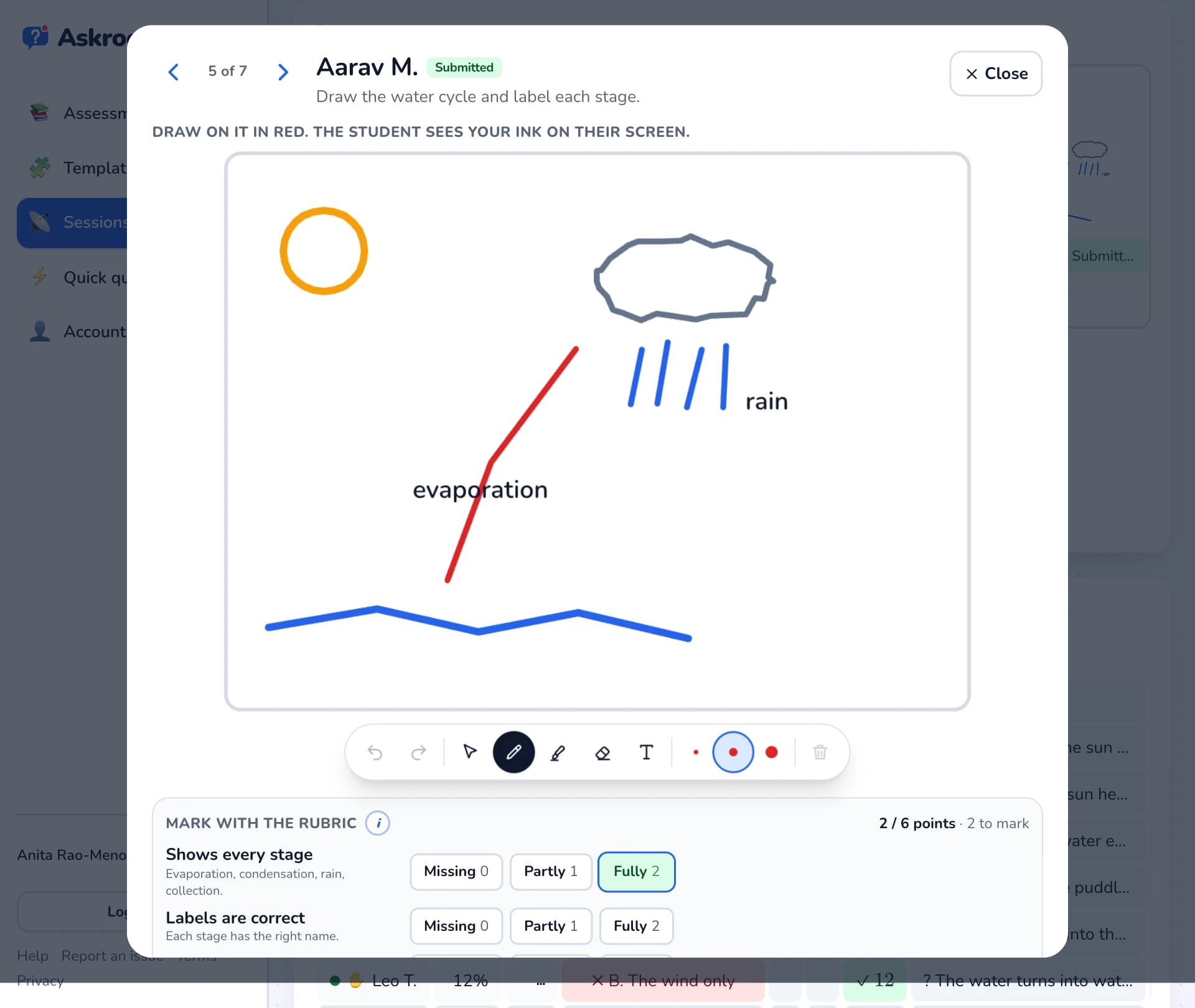
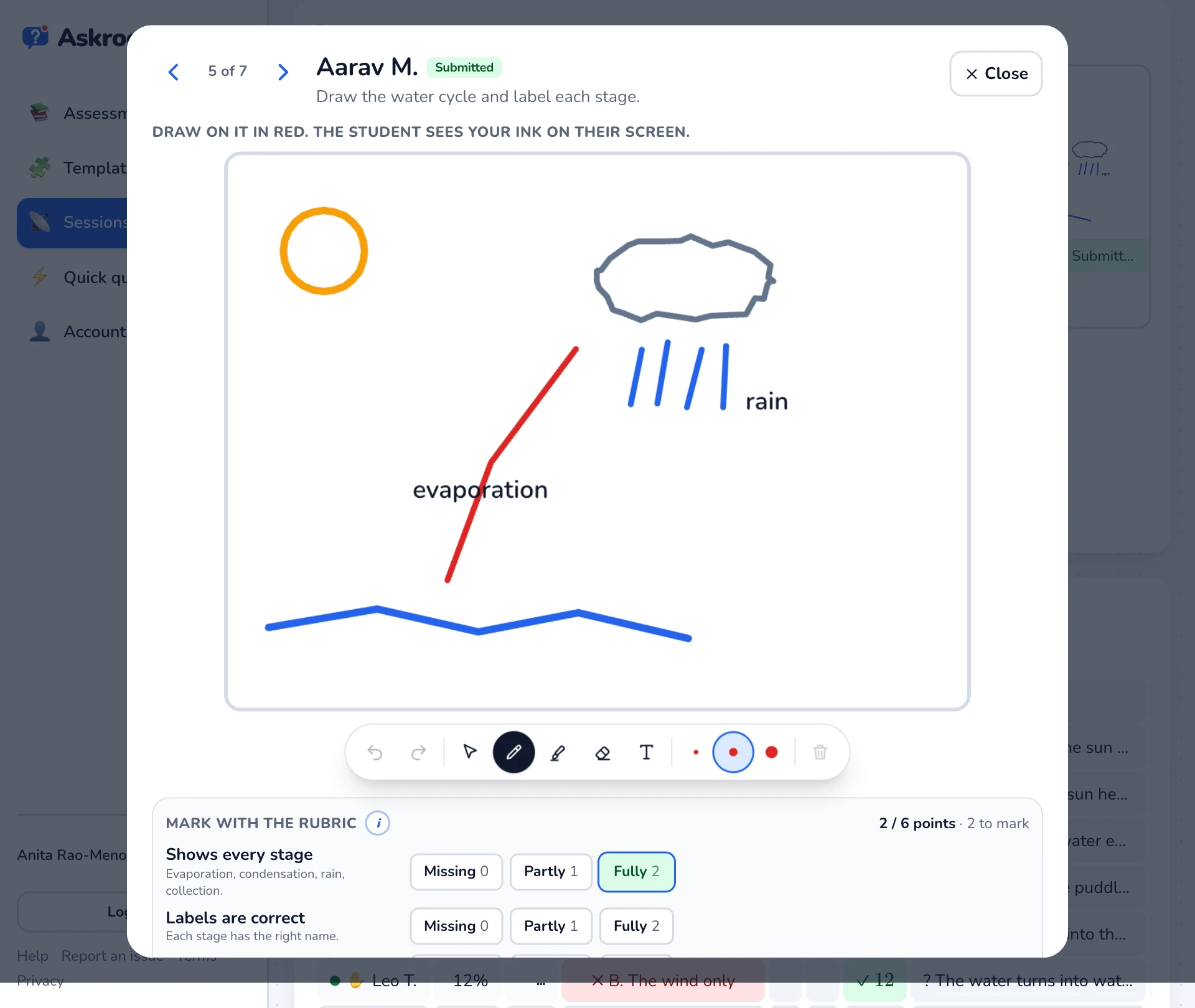
Tap any answer in the results grid or the live work grid. Use the arrows to go from student to student.
- 2
Give a mark
With a rubric, tap a level for each point under "Mark with the rubric" and the score adds up. Without one, use the quick 0, half and full buttons.
- 3
Write a note or draw
Type a "Note to the student (optional)". On drawings and worksheets you can write on the student's page in red.
- 4
Send it
Press "Send to student". If you chose to hold notes until the end, the button says "Save" and students see them in their results.
- 5
Ask for a better version
Press "↺ Ask to improve". The student's answer unlocks with your note, and their new version arrives as "Revised · v2". Earlier versions stay under "Earlier versions".
Mark after the session
Open the session's report and use "Mark answers" to mark everything that is still waiting, with the model answer beside each one.
Related
Was this page helpful?