The teacher screen during a session
Share the code, start, move through questions, see answers and raised hands, pause and finish.
For teachers
- 1
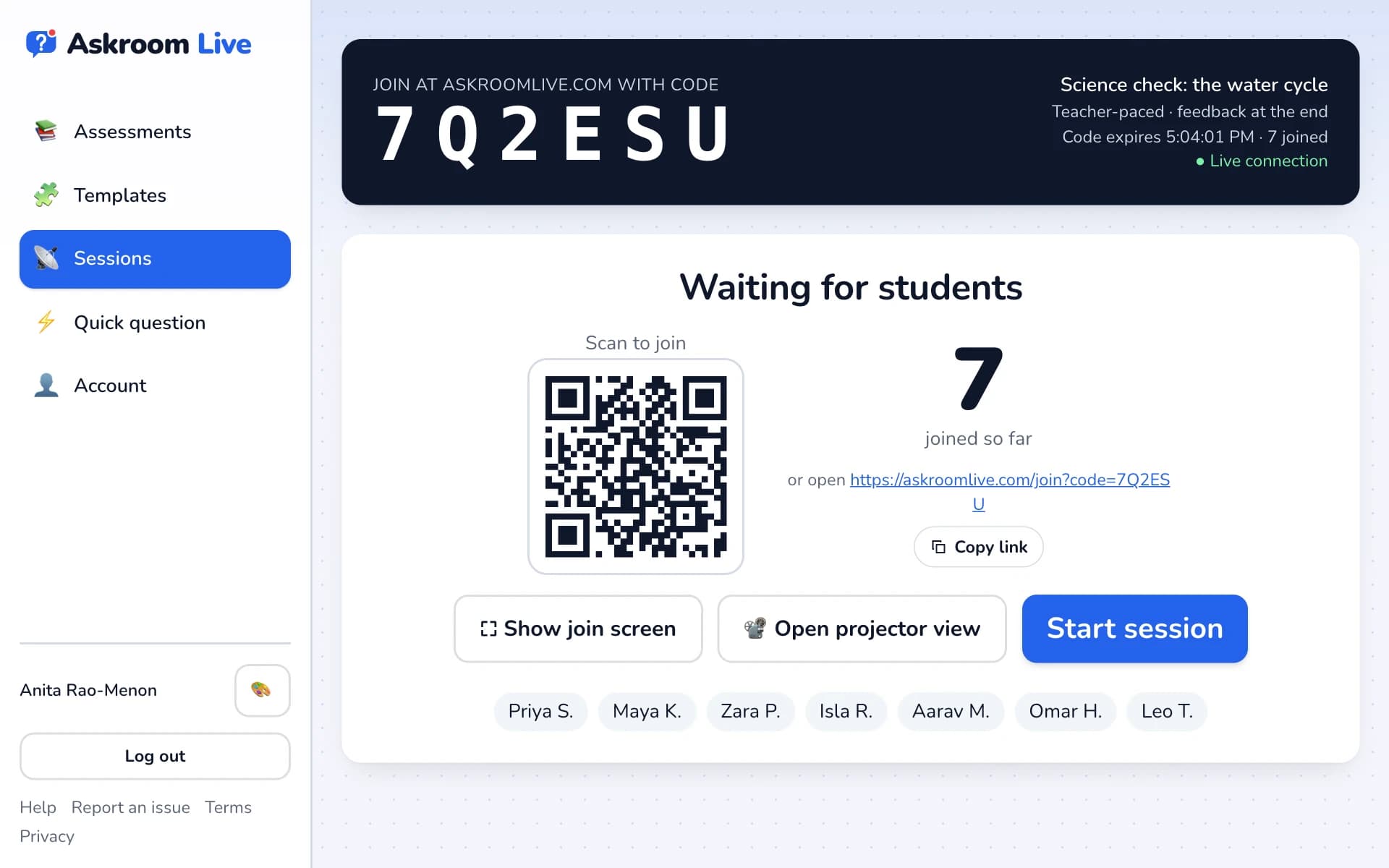
Share the join code
Students go to askroomlive.com and type the code, scan the QR code, or open the link you share with "Copy link". "⛶ Show join screen" shows the code full screen.
- 2
Start
When everyone is in, press "Start session". Students who join late go straight in.
- 3
Watch answers arrive
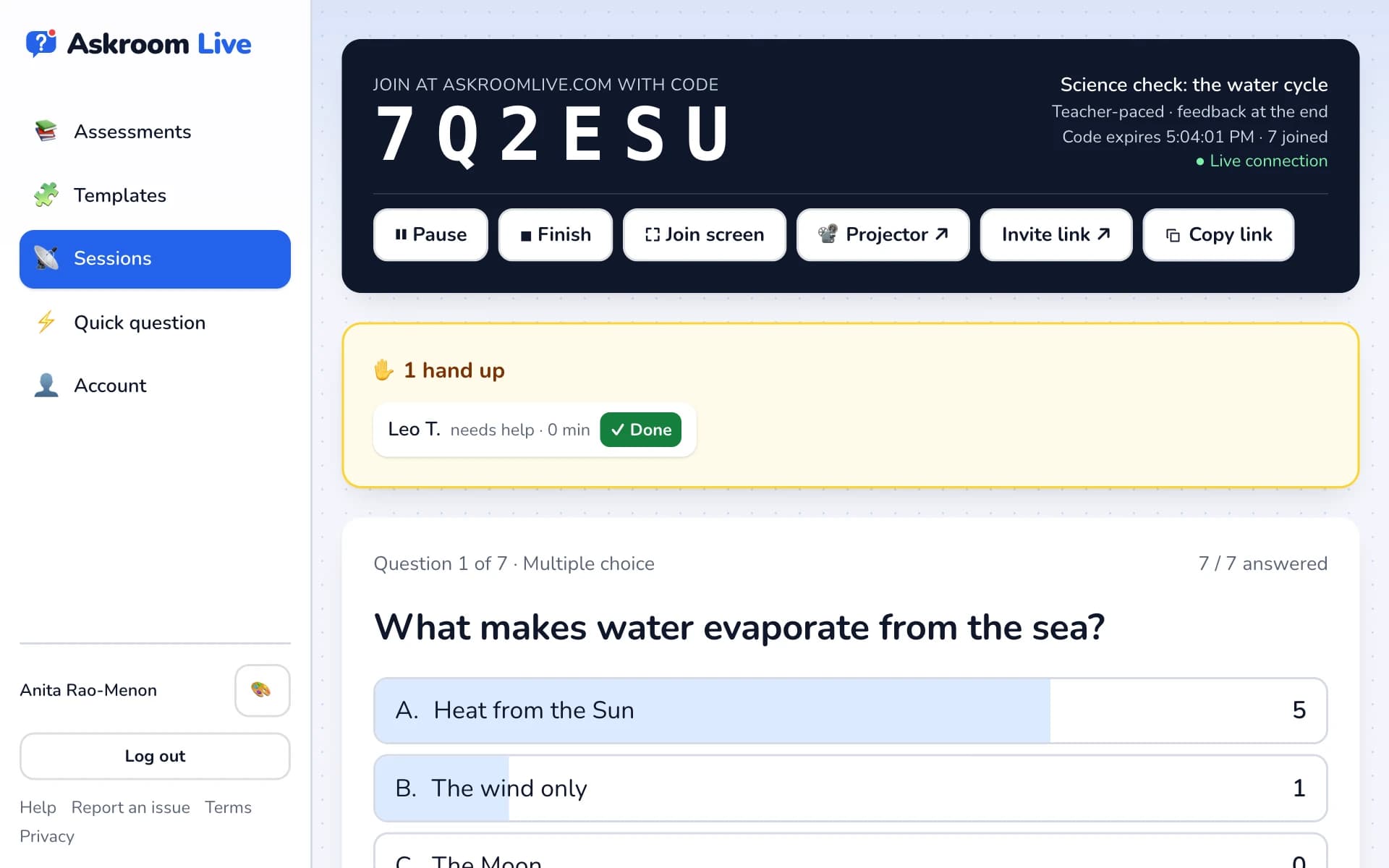
For a teacher-paced question you see "… answered", live bars for choice questions, and every answer in the results grid. Turn on "Show names", "Show responses" or "Show results" as you need.
- 4
Raised hands
Students can tap "✋ Raise hand" for "I need help" or "Check my work". Hands show at the top, with "see work" and "✓ Done".
- 5
Show or hide the answer
Under "Projector", turn on "Reveal answer" to show the correct answer on the projector, and "Show answer counts" for the live bars.
- 6
Move on, pause or finish
"Next question →" moves everyone on. "⏸ Pause" stops answering for a moment. "■ Finish" ends the session for everyone; then press "View report and export".
Related
Was this page helpful?