Create and edit an assessment
Use the editor to add questions, set the right answers, points and explanations, and choose the look students see.
For teachers
- 1
Open the editor
Press "+ New assessment" on the dashboard, or "Edit" on an existing one. The questions list is on the left, the open question on the right.
- 2
Set the title and who it is for
Open "Settings" at the top of the list. Give it an "Assessment title", an optional description students see while they wait, choose "Who is it for", and pick a "Student screen look" (colours and background on student screens and the projector).
- 3
Add questions and activities
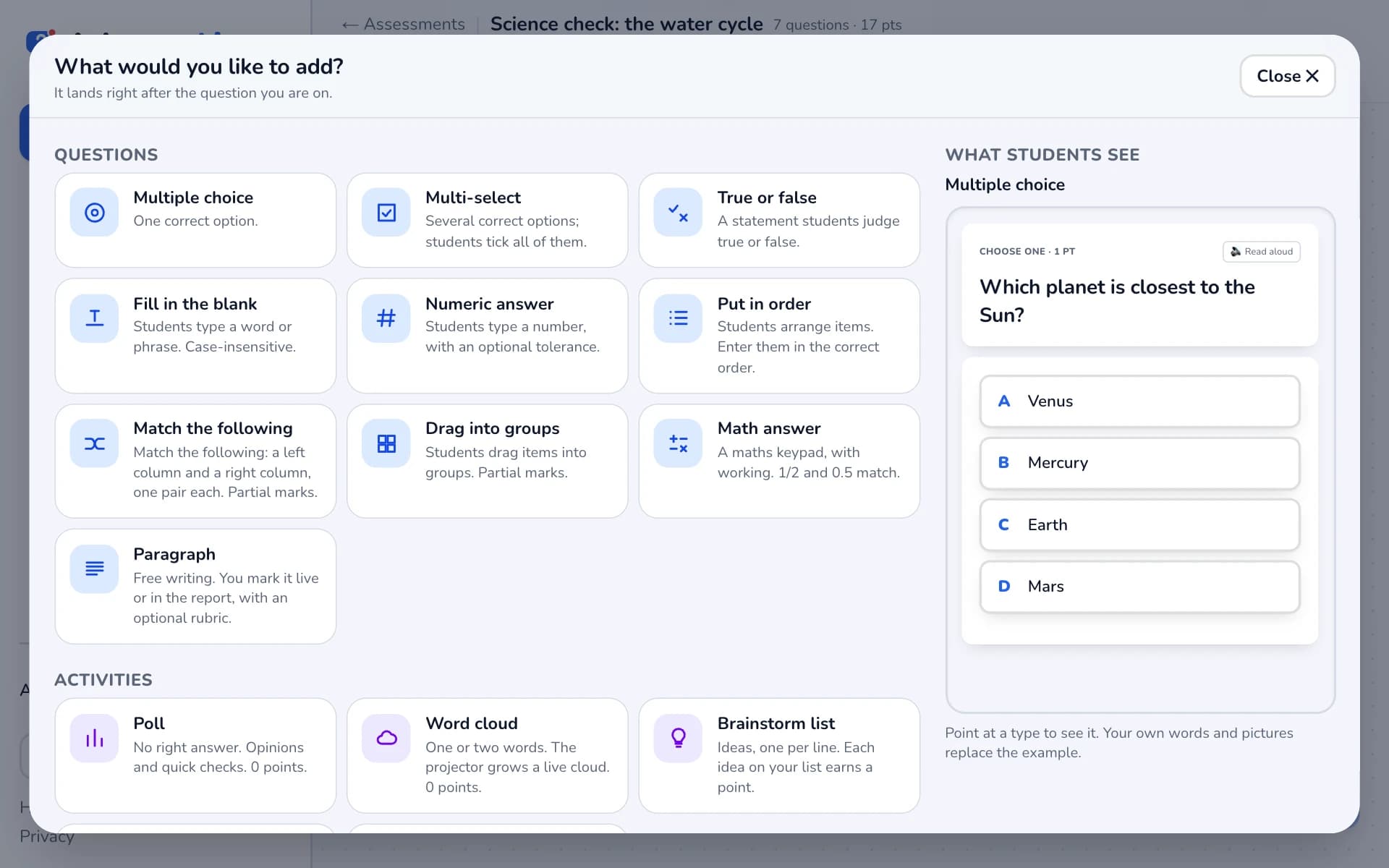
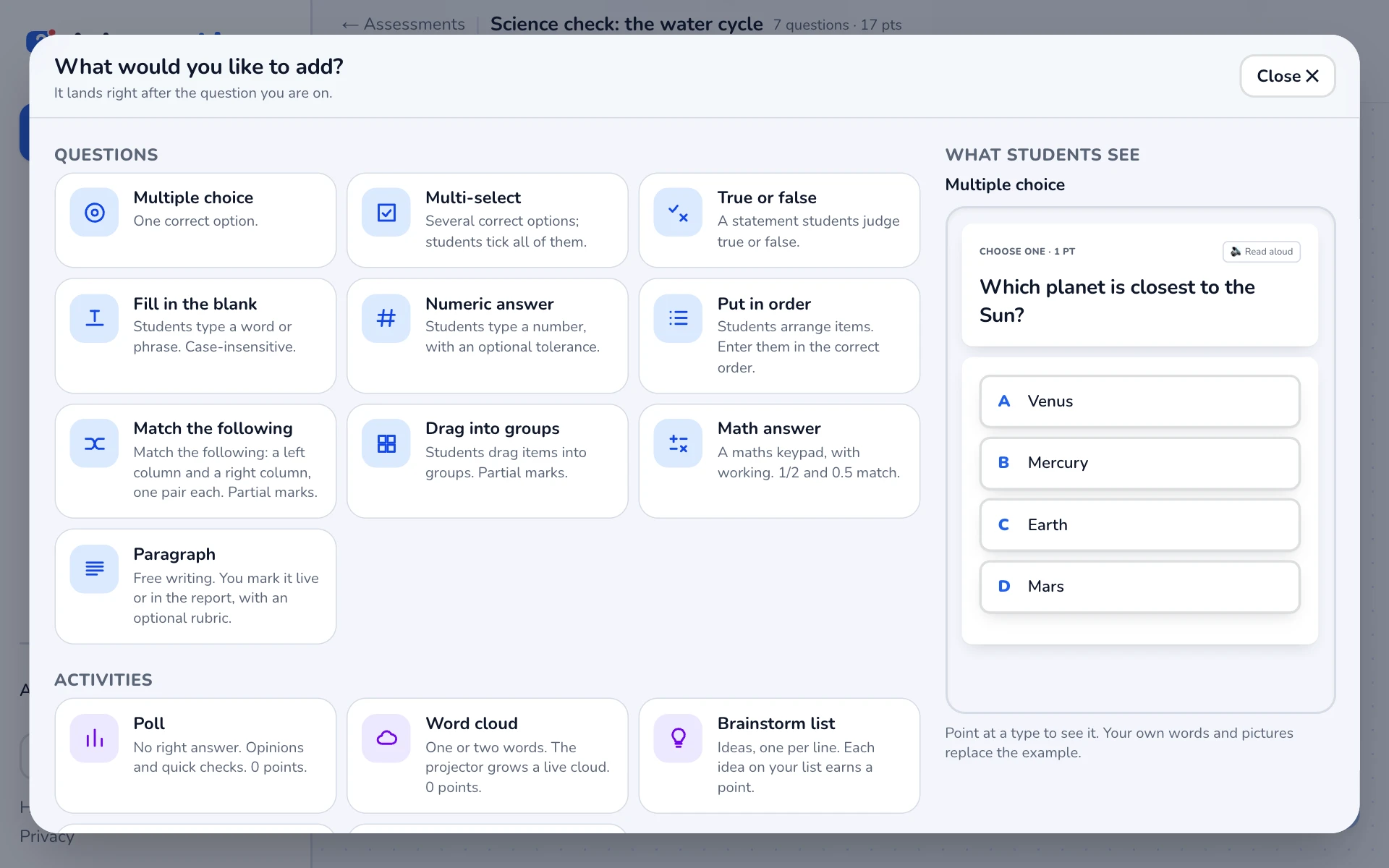
Press "+ Add". The menu shows every question type, with a preview of what students will see on the right. You can also add a "Content slide", a "Passage with questions" or a "Worksheet".
- 4
Set the correct answer
- Multiple choice and multi-select: tick the correct option or options.
- Fill in the blank: add every accepted answer. Any one earns full marks; capital letters do not matter.
- Numeric answer: the correct number and an optional tolerance (±).
- Put in order: type the items in the correct order; students see them shuffled.
- Match the following and drag into groups: set the pairs or the groups.
- 5
Points and explanations
Each question has "Points". Press "💬 Add explanation" to add feedback students see after answering (when you choose to show it).
- 6
Organise
Use "Move up", "Move down", "Duplicate" and "Delete" on each question. Point between questions in the list and press "Add here" to insert one in the middle.
- 7
Save
Press "Save" (or Ctrl+S / Cmd+S). The button shows "Saved ✓" when everything is stored. "Go live →" and "👁 Preview" wait until your changes are saved.
Related
Was this page helpful?