Results, reports and exporting
See every student's score and answers, the hardest questions, and export or print the results.
For teachers
- 1
Find the report
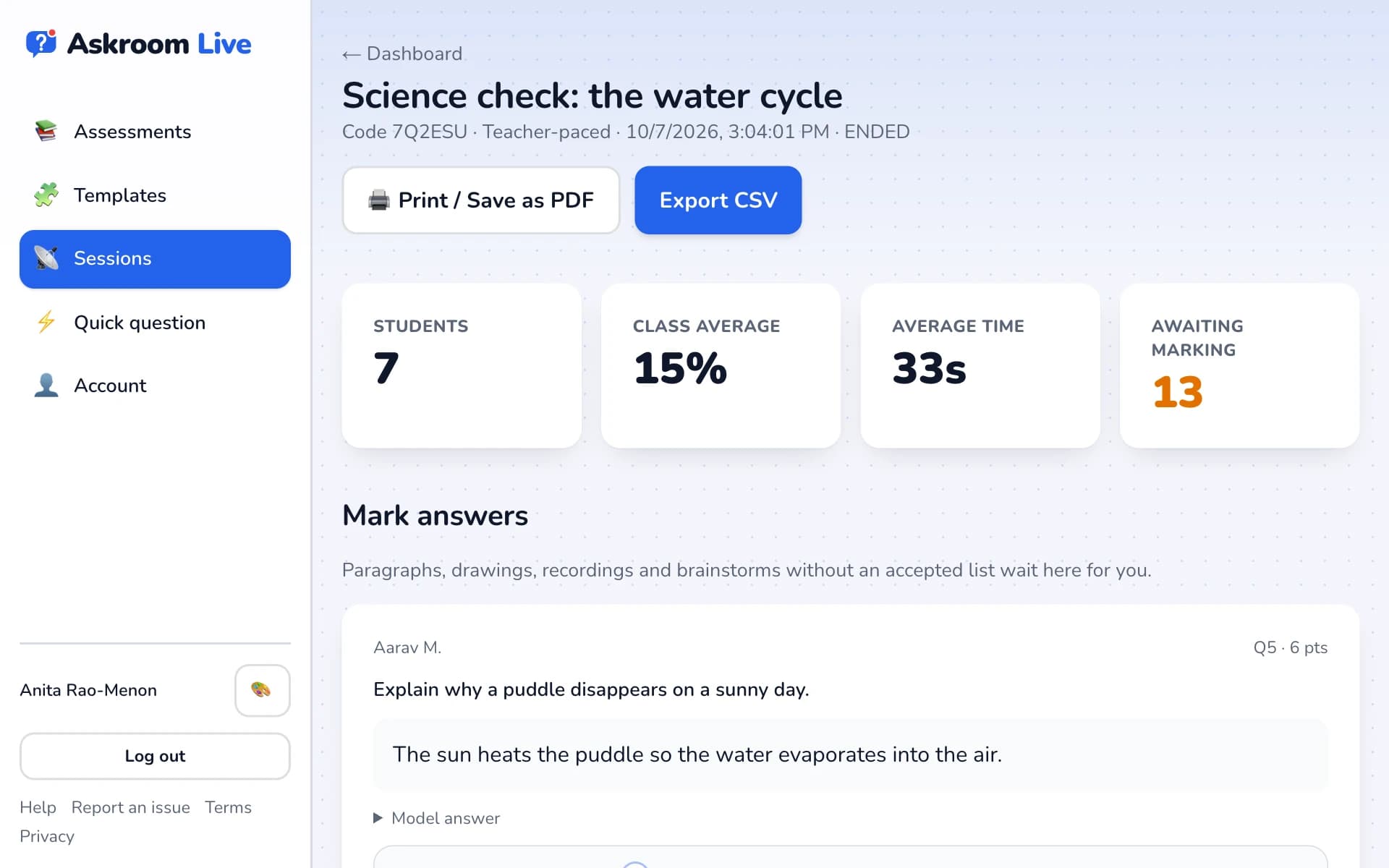
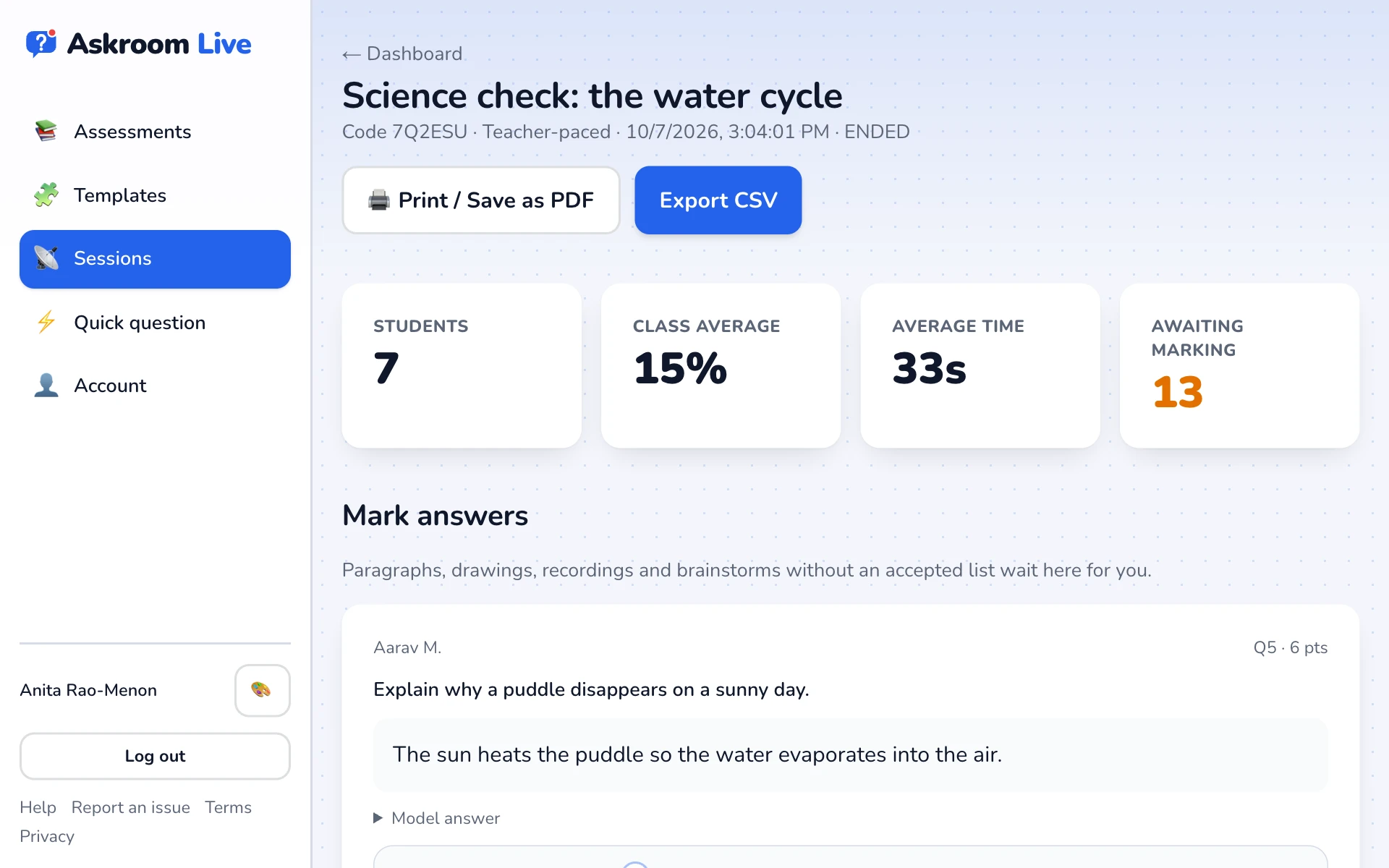
After "■ Finish", press "View report and export". Any time later, open "📡 Sessions" and press "Report" on a session.
- 2
Read the summary
See the number of students, the class average, the average time and how many answers are "Awaiting marking".
- 3
Scores and each student
The "Scores" table lists everyone; "?" means not marked yet. Click a name to open that student's sheet, which you can "Print for student".
- 4
See what was hard
"Question breakdown" shows how the class did on each question, and for rubrics which point was hardest.
- 5
Export or print
"Export CSV" downloads a spreadsheet with every answer and score. "Print / Save as PDF" prints the report.
Related
Was this page helpful?