Use the projector view
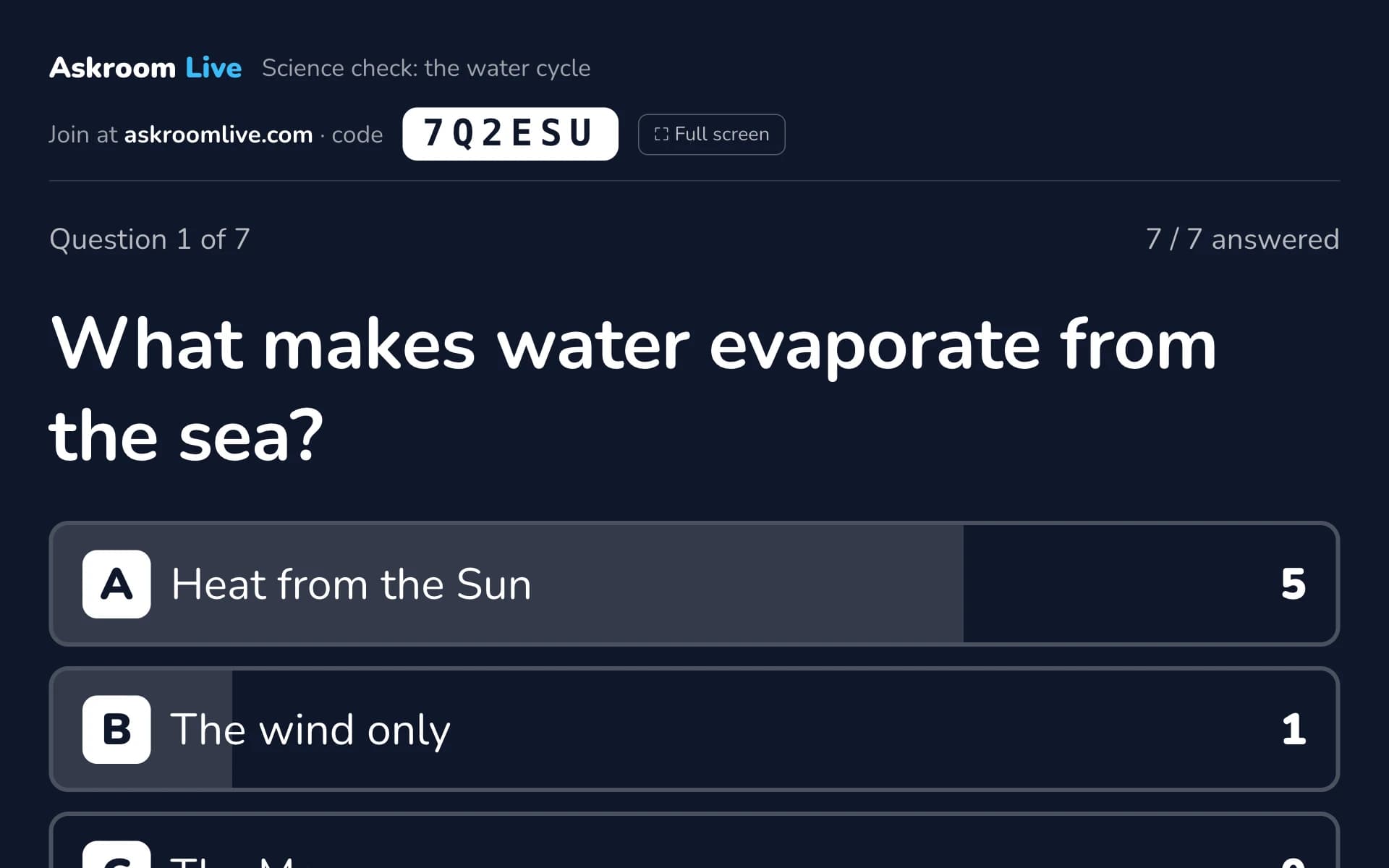
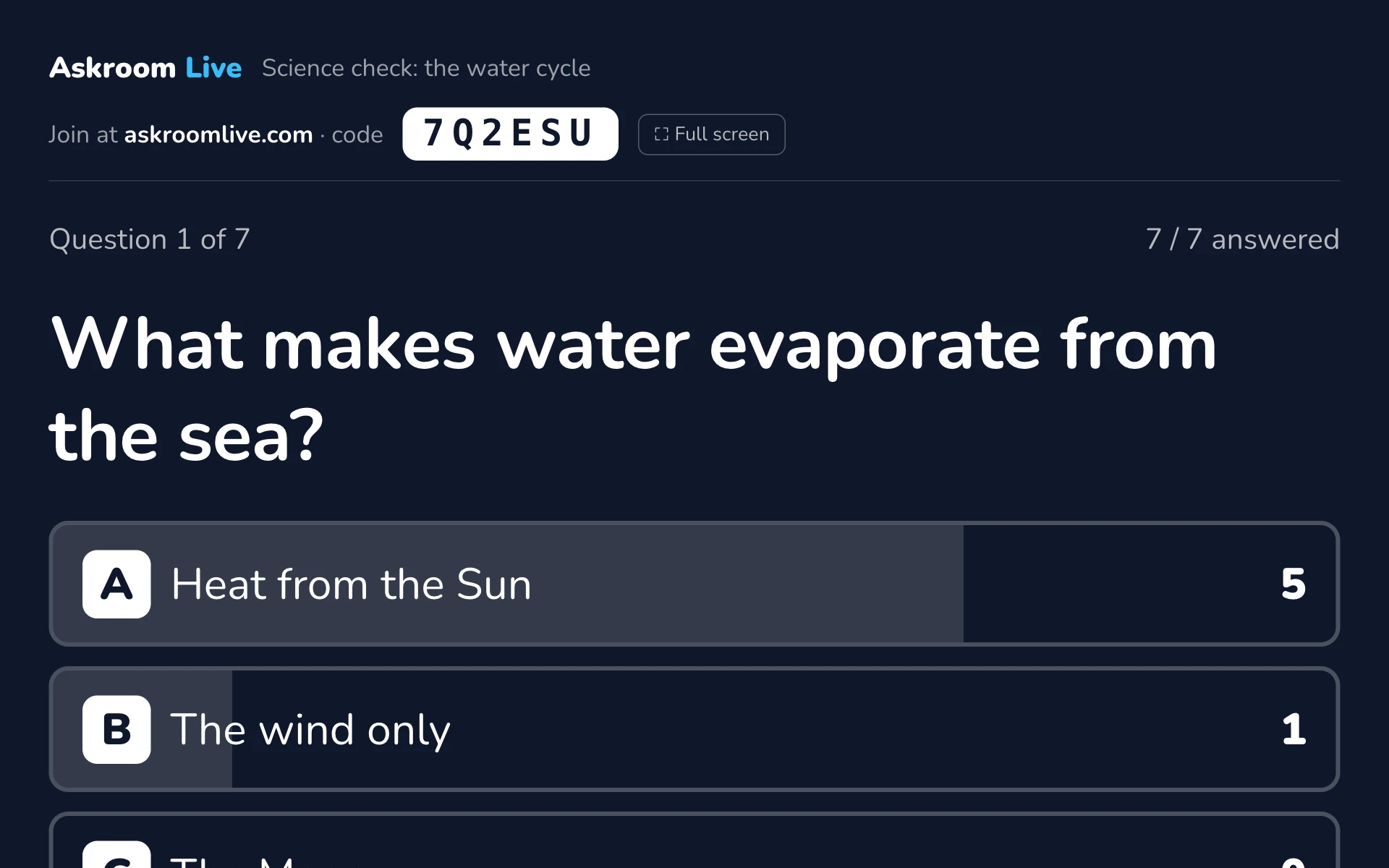
A clean screen for the class: the join code, the question, live counts and drawings, never student names.
For teachers
- 1
Open it
Press "📽 Open projector view" (or "📽 Projector ↗" during the session). It opens in a new window; drag it to the projector screen and press "⛶ Full screen".
- 2
What it shows
- Before you start: the code, the QR code and how many have joined.
- During a question: the question, the countdown, and live counts if "Show answer counts" is on.
- When you reveal: the correct answer and the explanation.
- Word clouds, brainstorm ideas, numbered drawings and class votes.
- At the end: "That's the end. Thank you!"
- 3
Keep it private
The projector never shows student names. Use your own screen for names and marks.
Related
Was this page helpful?